Reset macOS Local Network Permissions
What is the Local Network permission?
The Local Network permission is a part of macOS’ Transparency, Consent, and Control (TCC) framework. The mechanism restricts application access to sensitive resources without the user’s consent. Examples of other items TCC restricts include the ability to access user Desktop files, webcam and microphone access, and photo library access.
By default, macOS prevents applications from interacting with the local network on non-standard ports. The first time an application attempts a connection, macOS will prompt the user to grant the Local Network permission. If the user allows this permission, the application can proceed. If the user denies it, the application will fail to connect. The permission is not required to access a local resource on port 80 or 443. However, if you need to access a local resource on a non-standard port, such as 8080 or 9003, your application will need this permission.
The list of applications that have prompted for the Local Network permission, and either been allowed or denied, is accessible in System Settings > Privacy & Security > Local Network.

Apple explains a bit more about how this works in their Developer documentation notes: TN3179
Sometimes macOS will fail to handle the Local Network permission correctly for an application. System Settings will show an application as “Allowed” yet the app will fail to connect to local network resources. This appears to be a result of some sort of corruption or misidentification of the application in the property list (plist) that manages this allowlist.
When this occurs the Local Network section in System Settings often shows the application listed multiple times. Duplicate entries aren’t inherently a problem, but they can signal configuration drift. Toggling permissions for one entry affects them all, yet seems to fail to restore actual network access.
The tccutil Limitation
Unlike other Privacy & Security settings, the Local Network permission cannot be reset using the same tccutil command. Even if you force a reset of all application permissions for a given application bundle, the Local Network permission state will remain unchanged.
This may be an unintended consequence of the way this mechanism was implemented. It appears to be using a network extension and storing these permissions in separate preferences plist files. Normally, TCC permissions are stored as part of a sqlite database. Instead, the Local Network permissions are stored here:
$ ls /Library/Preferences/com.apple.networkextension*
/Library/Preferences/com.apple.networkextension.control.plist
/Library/Preferences/com.apple.networkextension.necp.plist
/Library/Preferences/com.apple.networkextension.plist
/Library/Preferences/com.apple.networkextension.uuidcache.plist
The Fix
You can force macOS to rebuild these files, and its allowlist, by removing them. There’s just one hurdle: these files are protected by System Integrity Protection (SIP). Attempting to remove or alter them while macOS is running will result in an Operation not permitted message.
How to Remove the Files
You can bypass the SIP restriction by removing these files from macOS Recovery.
- Boot into Recovery: Shut down your Mac. On Apple Silicon, hold the Power button until startup options appear. On Intel Macs, hold
Command + Rduring boot. - Mount your Data Volume: Using Disk Utility, mount your
Datavolume. You should see it listed in the sidebar. Select it and click the Mount button. - Open Terminal: Close Disk Utility, then select Utilities > Terminal from the menu bar.
- Delete (or move) the files: Move or remove the plist files above. Make sure to interact with them using the path of your mounted data volume.
cd /Volumes/Data/Library/Preferences/

# either delete the files outright...
rm com.apple.networkextension.*.plist

# or move them elsewhere:
mv com.apple.networkextension.*.plist /Volumes/Data/Users/username/Desktop- Reboot: Shut down or restart your Mac.
Resolution
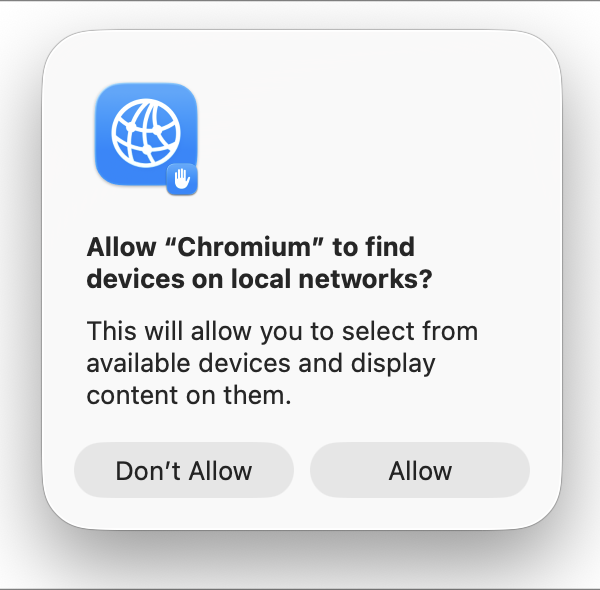
After rebooting, you should find that the Local Network list in System Settings is completely empty. When you open your application and attempt a local connection, macOS should instantly trigger a fresh Local Network permission prompt.
Apple’s View
The inability to reset the Local Network permissions using tccutil is tracked in Apple’s feedback tool as FB14944392, FB16270285, and probably more than a few others. They must be at least vaguely aware of the issue as Apple’s own documentation recommends using a virtual machine or alternate user accounts for testing apps that need to work with this functionality.
On macOS there’s no way to reset your program’s Local Network privilege to the undetermined state (FB14944392). One alternative is to run your program in a virtual machine (VM). To retest, restore the VM from a snapshot taken before you installed your program.
Alternatively, create a new user account and run your test there. Remember that macOS maintains separate local network privacy state for each user account.
What absolute insanity that this is required…